How to Add Your Logo to a QR Code (Step-by-Step)
Upload your brand mark in Pretty QR’s Logo tab: file limits, size and margin sliders, hide-background-dots, testing, and export as PNG, JPG, or SVG, without breaking scans.


How to Add Your Logo to a QR Code (Step-by-Step)
In Pretty QR you add a centered brand logo from the Logo tab: pick PNG, JPG, or SVG under 2MB, adjust size (about 10–50% of the code), set margin if the mark feels cramped, use Hide background dots when you want a clean patch behind the art, then test with real cameras and Download as PNG, JPG, or SVG. The app bumps error correction when a logo is present; you still keep the logo modest so phones read the code in normal light.
I have printed QR codes that looked incredible and refused to scan. Half the time the culprit was the logo: too big, too busy, or sitting on top of modules without enough breathing room. The other half was contrast or size of the whole code. Worth reading our design best practices and getting started with custom QR codes if you want the “why” behind those failures.
This guide is the click-by-click path inside Pretty QR. Screenshots use the Elegant Purple template and a simple sample mark so you can see color harmony between modules and logo. You can download the same sample logo if you want to follow along literally.
What should I prepare before adding a logo?
File type. Use PNG, JPG, or SVG. The upload area spells out “PNG, JPG, SVG up to 2MB.” That limit is enforced so enormous photos do not blow up the browser or the export pipeline.
Visual design. Favor a mark that reads when it is small: thick strokes, limited detail, and strong separation from whatever sits behind it. Square-ish logos tend to sit neatly in the center square everyone expects.
Contrast and the rest of the QR. A logo does not fix bad module/background contrast. If your foreground and background colors are mushy together, fix Styling (or pick a template) before you obsess over the logo. Getting started has the squint test and contrast mindset; design best practices goes deeper on quiet zones and print testing.
Content first. Decide what the QR encodes (usually a URL) in the Content tab before you fall in love with visuals. A beautiful code that points nowhere is still a dead end.
How do I open the editor and set what the QR encodes?
You can start from the homepage: enter your link or choose another content type from the dropdown, watch the preview update, then use the entry points into the full editor when you are ready to style and export. That path is great when you are already on the marketing site and want one continuous flow from “idea” to “download.”
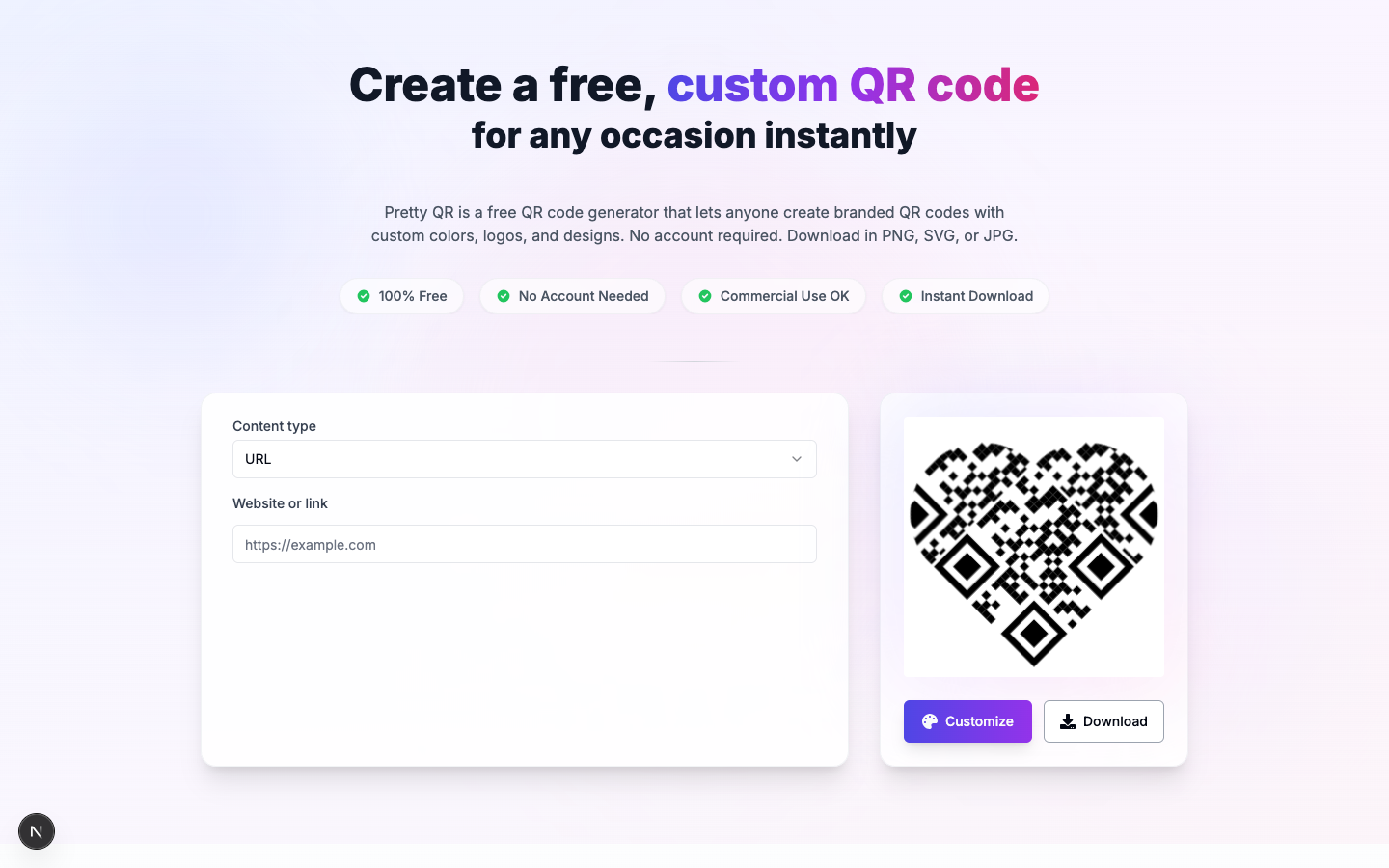
The editor lives at Design. That flow persists your work: after your first change, Pretty QR creates a saved design and moves you to /design/[id] so logos, colors, and exports are not lost on refresh. (The old /customize URL redirects to /design and is deprecated.)
From the homepage, enter your URL and move into the editor when you are ready to style. If you already know you want the full layout immediately, open /design directly, with the same Content, Templates, Styling, Logo, and Frame sidebar and live preview.
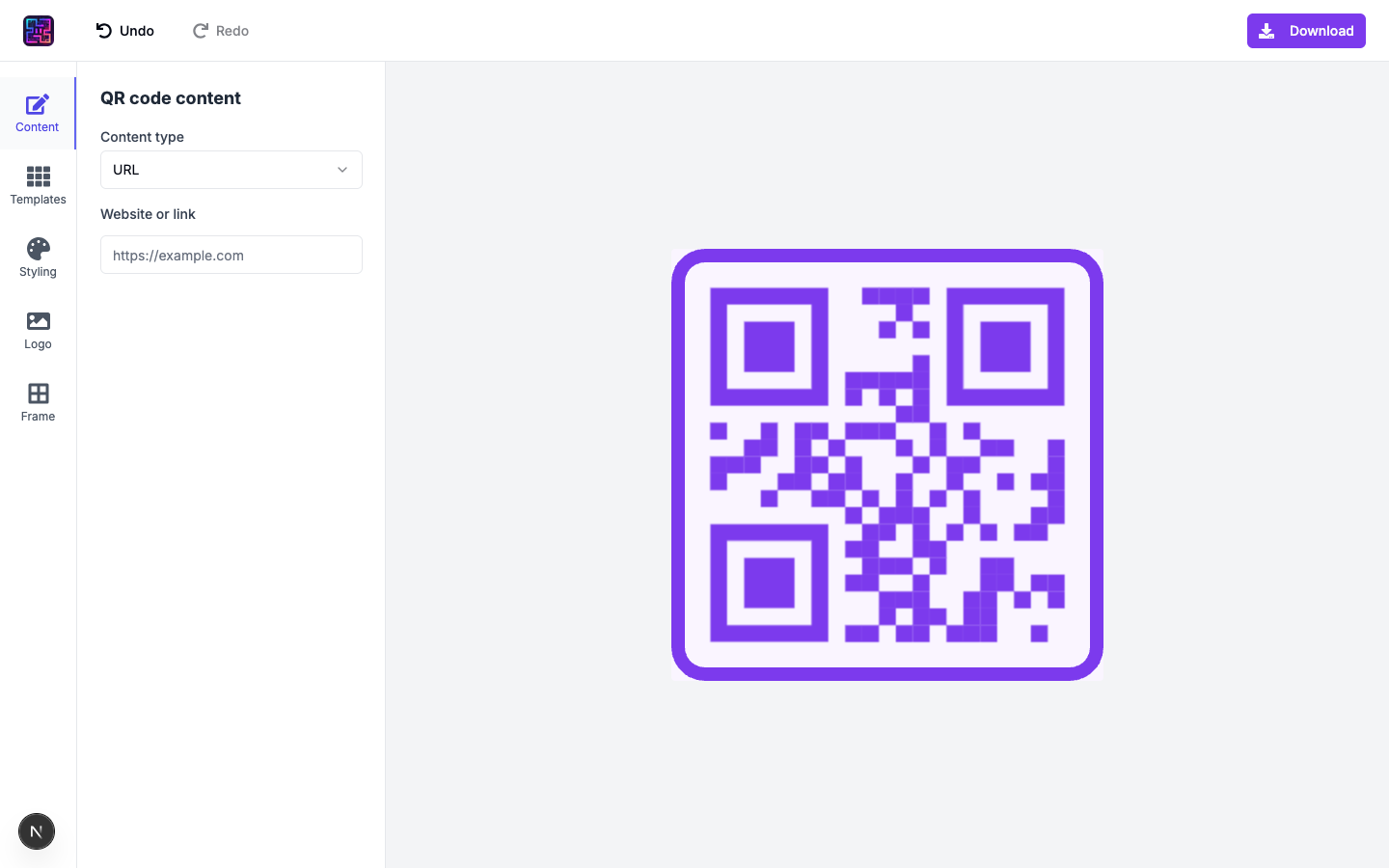
Open the Content tab (it is the first tab in the sidebar next to Templates, Styling, Logo, and Frame). Enter the URL or fill the fields for text, Wi‑Fi, vCard, email, or phone, whatever you need. You should see the preview update as you go.
If you are new to the tool, do not worry about perfection yet. Get something scannable in the preview, then move on. You can always come back after you add a logo.
Should I pick a template before I add my logo?
You do not have to, but it saves time. Templates apply colors, frames, and sometimes a predefined look so you are not tuning from scratch.
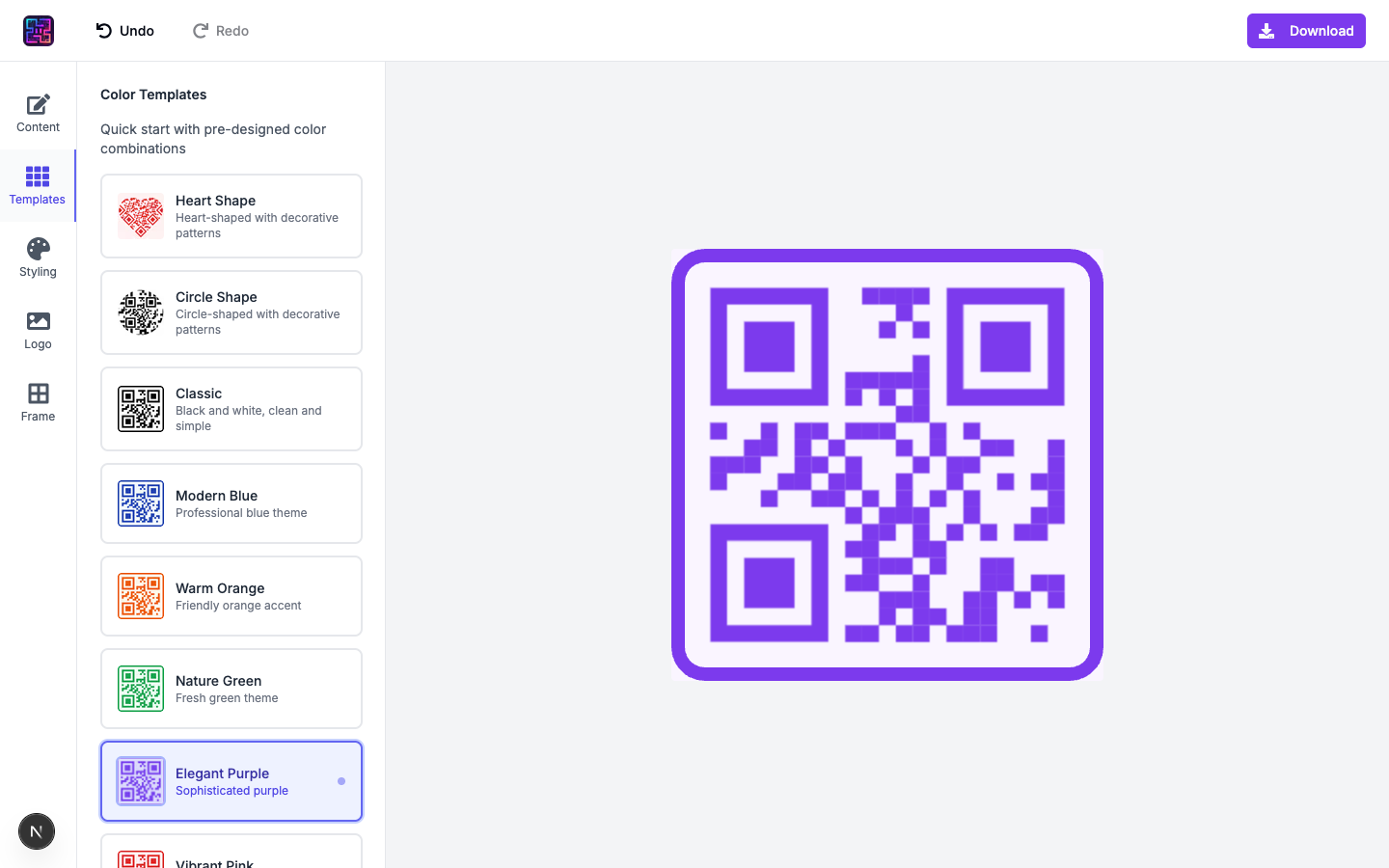
Open Templates and pick one that fits your brand. For the screenshots in this article I used Elegant Purple: purple modules on a very light background, because it pairs cleanly with a simple violet logo. You can open the same style from the templates gallery or jump to the Elegant Purple template page if you want that starting point explicitly.
Heads-up: some social templates ship with their own center artwork (for example Instagram-style layouts). If you apply one of those and then upload your logo, you are stacking two brand stories in the middle. That can work, but it is easy to overfill the center. When you want your logo to be the hero, start from a template without a baked-in center icon, then add yours.
Where is the Logo tab and how do I upload my file?
Click Logo in the sidebar. You will see Brand Logo as the heading and an Upload area that accepts drag-and-drop behavior via click-to-browse.
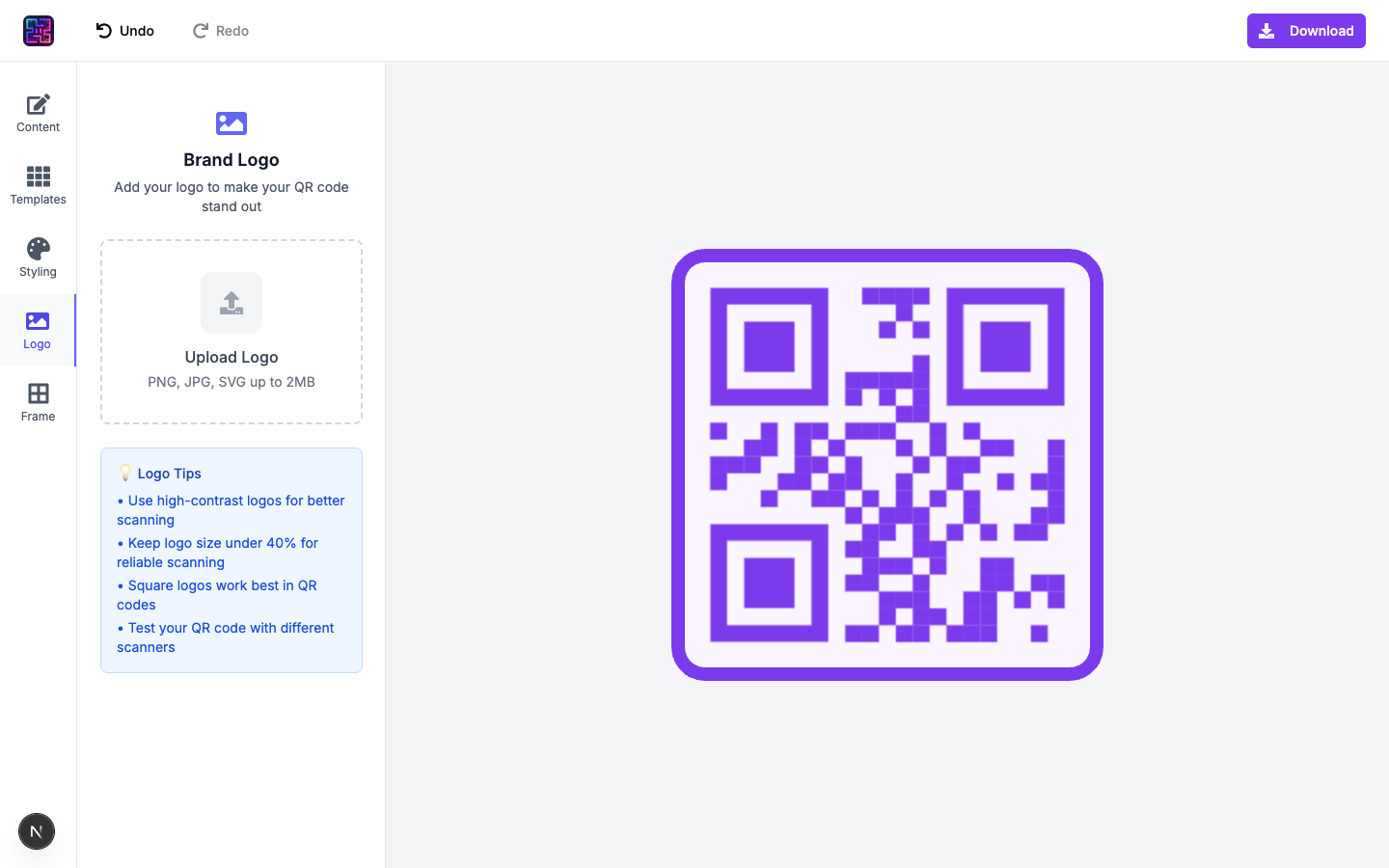
Choose a file under 2MB. If the file is not an image type, the app will stop you. After upload, you get a Current Logo preview, Remove logo, and Change Logo so you can iterate without refreshing the page.
What do logo size, margin, and “Hide background dots” actually do?
After upload, three controls matter:
Logo size is a slider from roughly 10% to 50% of the QR area. Bigger is not better. The built-in tips suggest keeping under ~40% for reliable scans. I usually start near 25–30%, scan with two phones, and only then nudge upward if everything still snaps instantly.
Logo margin adds space between your mark and the surrounding modules (up to 20px in the slider). If the logo feels glued to the pattern, add margin. If the center feels empty, reduce it slightly.
Hide background dots removes the QR modules behind the logo so your artwork sits on a flat patch. That often looks more intentional and can help visually busy logos. Treat it like any other change: scan again after you toggle it.
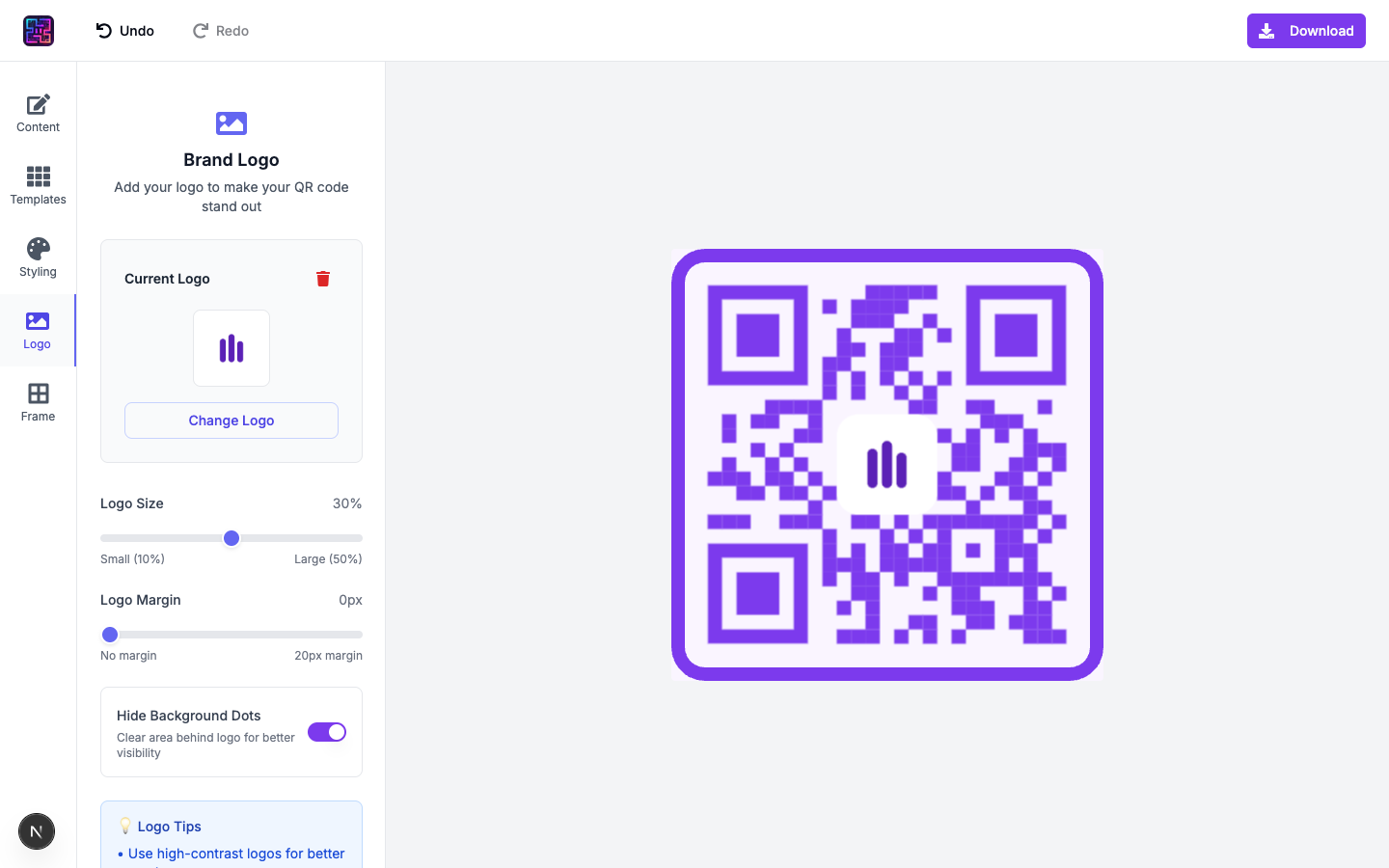
Under the hood, Pretty QR uses stronger error correction when a logo is present so the code can tolerate more missing data in the center. That is not magic: if you max out the size slider and use a noisy logo, you can still lose scans. Error correction is a safety margin, not a substitute for judgment.
How do I export the QR code after the logo looks right?
Use the Download button in the top bar. The menu offers:
- PNG (High Quality): labeled Recommended for most uses
- JPG (Compressed): smaller files, photo-style compression
- SVG (Vector): scalable for print and design tools
Pick the format that matches your next step: social and quick shares often land on PNG, print shops sometimes want SVG or a high-res PNG, and JPG is fine when you explicitly want a lighter raster.
Export after you have scanned successfully in the preview context you care about, especially if you will print. Paper, ink, and lamination change contrast; design best practices has more on testing printed pieces.
How should I test a QR code that has a logo?
Same discipline as any custom code, with extra attention to the center:
- Try more than one phone, include an older Android if you can.
- Try bad light, not just your desk. Menus and events are rarely studio-lit.
- If you will print, scan a proof from the actual printer and stock.
If scanning gets slow or flaky, shrink the logo, add margin, simplify the artwork, or improve global contrast in Styling. Toggling Hide background dots off and on is worth a quick A/B test when the center feels muddy.
What if my QR code still will not scan?
Work through this order:
- Logo too dominant? Move the size slider down and test again.
- Whole-code contrast weak? Adjust colors or pick a calmer template.
- Quiet zone cropped? Make sure nothing (text, crop, frame) eats the margin around the full symbol. See design best practices.
- Physical size too small? On print, bump the entire code, not just the logo.
Still stuck? Strip the logo temporarily. If the bare code scans instantly, you know the issue is center overload or interaction between logo and modules, not the encoded URL.
How does this compare to using a template that already includes a logo?
Templates are fast when the built-in story matches yours, great for “Instagram look” or other preset social styles. Uploading your own logo is the right move when the center must be your mark, your sub-brand, or a campaign icon.
You can browse all starters on /templates, open a template’s detail page, and click Customize to jump into /design with that look applied; your design is then saved like any other session. There is no rule against combining a template with your own Logo tab artwork, as long as you do not overcrowd the middle.
Quick recap
- Start from / or open /design when you want the editor immediately; both end up in the same UI, and
/designkeeps your design saved after the first edit. - Set Content, optionally pick a Template so color and frame are not fighting your logo.
- Open Logo, upload PNG/JPG/SVG under 2MB.
- Tune size (stay conservative: think 25–30% before you chase 40%), margin, and Hide background dots as needed.
- Test on real hardware, including a printed proof if this is going on paper.
- Download PNG (High Quality), JPG (Compressed), or SVG (Vector) from the top Download menu.
If you want the fastest path from zero to a styled code (not only logos), keep getting started with custom QR codes open in another tab. It is the broader tour; this article is the logo deep dive.
Questions? [email protected]
Frequently asked questions
What image formats and file size can I use for a QR code logo in Pretty QR?
Pretty QR accepts PNG, JPG, or SVG. Each file must be under 2MB. If export fails or preview looks wrong, try a smaller PNG or simplify an overly complex SVG.
What is a safe logo size inside the QR code?
The Logo tab slider runs from 10% to 50% of the code area. The in-app tips suggest staying under about 40% for reliable scanning. When in doubt, start near 25–30% and increase only if tests stay clean.
Do I need to change error correction myself when I add a logo?
No. In Pretty QR, when a logo is present the generator uses a higher error correction level automatically so the code can tolerate more “damage” in the center. You still need a reasonably sized logo and good contrast. Error correction is not a license to cover half the code.
Should I use PNG or SVG for my logo?
SVG is great for crisp vector marks. PNG with transparency works well when you need a raster asset from your brand kit. Either is fine as long as the artwork stays readable at small sizes and does not visually merge with the modules behind it.
What does “Hide background dots” do behind my logo?
It clears the QR modules in the area behind your logo so the mark sits on a clean patch. That usually makes the logo easier to see and can help scanners, but you should still test on real phones after toggling it.
Related articles

Getting Started with Custom QR Codes
Learn how to create beautiful, customized QR codes that stand out from the crowd and actually get scanned.

QR Code Color Palettes: 15 Combinations That Work Perfectly
Print vs screen vs outdoor, minimum sizes, grayscale and phone testing, pastel brand workarounds, and fifteen high-contrast QR color pairs with per-palette print notes, plus Pretty QR steps.

5 Design Tips for Scannable QR Codes
Essential design principles to ensure your beautiful QR codes actually work when people try to scan them.